ugo operation screen
* Will be updated as the UI changes.
| ① | Serial number, model name |
| ② |
Map linked to the floor (if the map is not linked, it will not be displayed) |
| ③ |
Button to switch display of surrounding information detected by LiDAR and collision prevention range (v1/v2) |
| ④ | Various data (ugo version, CPU usage, disk usage, boot time, etc.) |
| ⑤ | Environmental data (temperature, pressure) *Only displayed for ugo Pro (G4) models |
| ⑥ |
▲◀▶: Spatial distance in front of ugo/left and right (m) Forward: Last ugo distance traveled (m) (distance traveled since startup or last movement command executed) |
|
⑦ |
Building name and number of floors |
| ⑧ | Keyboard lock ON/OFF, PC microphone ON/OFF status display |
| ⑨ |
Various status display/switching buttons (From the left: Patrol lamp ON/OFF, Ring light ON/OFF, Rearview monitor ON/OFF, Lifter height setting, bluetooth, Various service status, Battery level, Tspider cooperation, Activity history) |
| ⑩ | Stop button |
| ⑪ | Commands and Flow List |
| ⑫ | Action Menu |
| ⑬ | Keyboard Operation Guide |
| ⑭ |
Text input field, template speech selection field (If it is not displayed, turn on "Text Dialogue" in the Action Menu to display it.) |
Action Menu
| A. Remote Console |
You can launch a remote console from here. |
| B. Settings |
You can configure various settings such as sound settings, updates, and service restarts. *Please refer to here for various settings. |
| C. Current Floor on |
You can display/hide the information about current floor using this. |
| D. Remote control speed - Normal/Slow | You can switch between normal and slow running speed using keyboard operations. |
| E. Guide ON/OFF | You can turn guide line display on/off. |
|
F. Text to speech ON/OFF |
You can turn the test dialogue box display on/off. |
|
G. Marker settings for Check items |
You can check various items here. |
|
H. Pose Editor |
You can open the pose editor screen. *For more information about the pose editor, please see here. |
| I. Start WorkPlan |
You can launch WorkPlan *For more information about WorkPlan, please see here. |
| J. Take Video |
You can record the video of the operation screen. The maximum recording time is 1 minute ( please do not record for more than 1 minute ) * Please refer here for how to set up the camera used for shooting. *The captured records can be viewed from the report management page. |
| K. Take Photo |
You can take photos with the camera you set. * Please refer here for how to set up the camera used for shooting. *The captured records can be viewed from the report management page. |
Keyboard Operations
Before operating ugo, please read [⚠Please read before operating ugo]
Click the "?" at the bottom right of the ugo operation screen to display the keyboard operation guide.
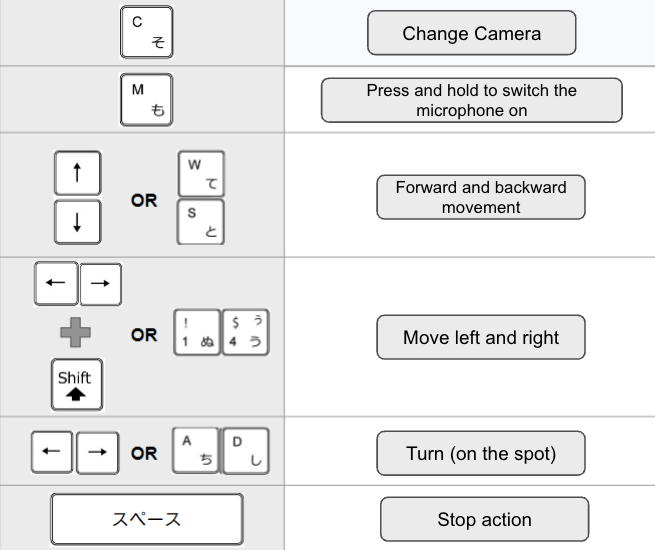 Supplementary information
When starting up ugo or charging ugo, keyboard operation is restricted to prevent accidental or unintended operation.
The following pop-up will be displayed the first time you operate the keyboard. If you want to operate the keyboard, click "Cancel".
*If you refresh the screen or reopen the operation screen, keyboard operation will be restricted again.